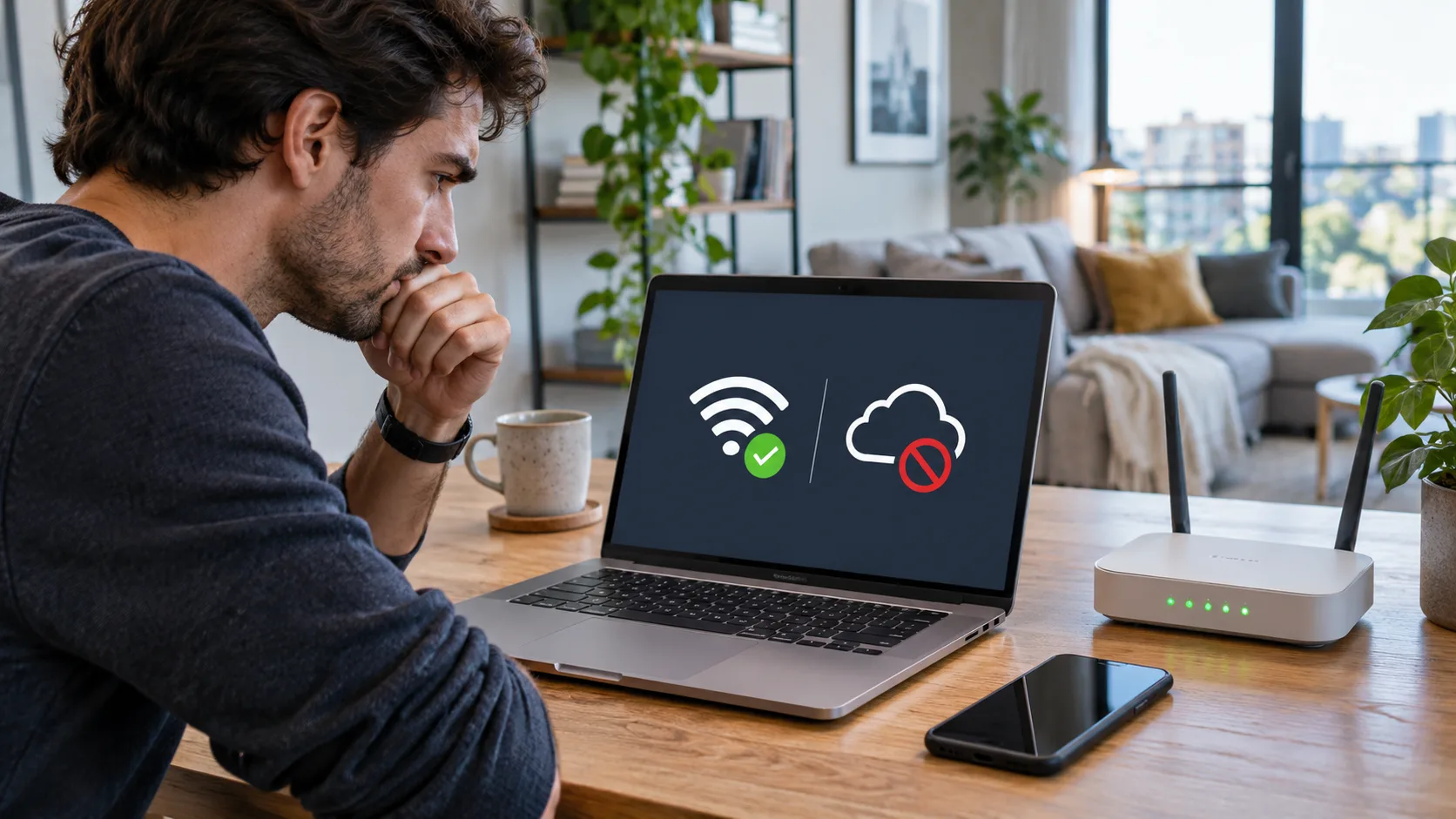
The Wi-Fi icon showed full bars, but my laptop refused to load a page. I was about to press the tiny reset button on the router when my phone buzzed on the same network. It had just received a new message. That did not prove the internet was healthy, but it gave me a better first question: was the problem on one computer, with one service, or somewhere between the router and the provider?
“Connected” can describe the wireless link between a device and the router. It does not always mean that the router has a working path to the wider internet. The difference matters because a factory reset can erase the network name, password, provider details, and custom settings while doing nothing to fix an outage. Start with comparisons that preserve your setup, then move toward more disruptive steps only when the evidence points there.
Compare devices and destinations
Keep the test simple. On a phone connected to the same Wi-Fi, open a few unrelated websites. If the phone works but the laptop does not, focus on the laptop: confirm airplane mode is off, disconnect a VPN temporarily if your work or security rules allow it, and check whether a proxy is configured. Restart the laptop before deleting the saved Wi-Fi network. If you do forget the network, have its password available so you can reconnect.
If every device fails, look beyond the individual device. Check whether the modem and router have power and whether their connection lights match the manufacturer’s guide. The lights do not provide a universal diagnosis; their meaning depends on the model. A flashing or warning light is a clue to look up in that model’s manual, not a reason to press reset at random.
Also compare destinations. If email and several unrelated sites work but one service does not, the home Wi-Fi may be fine. Check that service from another device or its official status page. Avoid changing DNS, router security, or firewall settings to fix a single website unless its support documentation identifies a specific network requirement.
| Check | What it helps distinguish | Next step |
|---|---|---|
| A second device on the same Wi-Fi | One device versus the shared connection | Compare device settings or inspect the router |
| Several unrelated websites | One service versus broad loss of access | Check the affected service’s status |
| Router and modem indicators | Local equipment versus provider connection | Match lights to the device manual |
| A restart versus factory reset | Temporary fault versus erased setup | Restart first; reserve reset for later |
Restore the connection with small steps
Start with the device that shows the error. Turn Wi-Fi off and back on, make sure airplane mode is off, and confirm that the device selected the intended network. A phone can silently switch between saved networks, and a laptop may remember an old network with the same name. If one device remains offline while others browse normally, restart it and inspect its VPN, proxy, and network profile before changing the router.
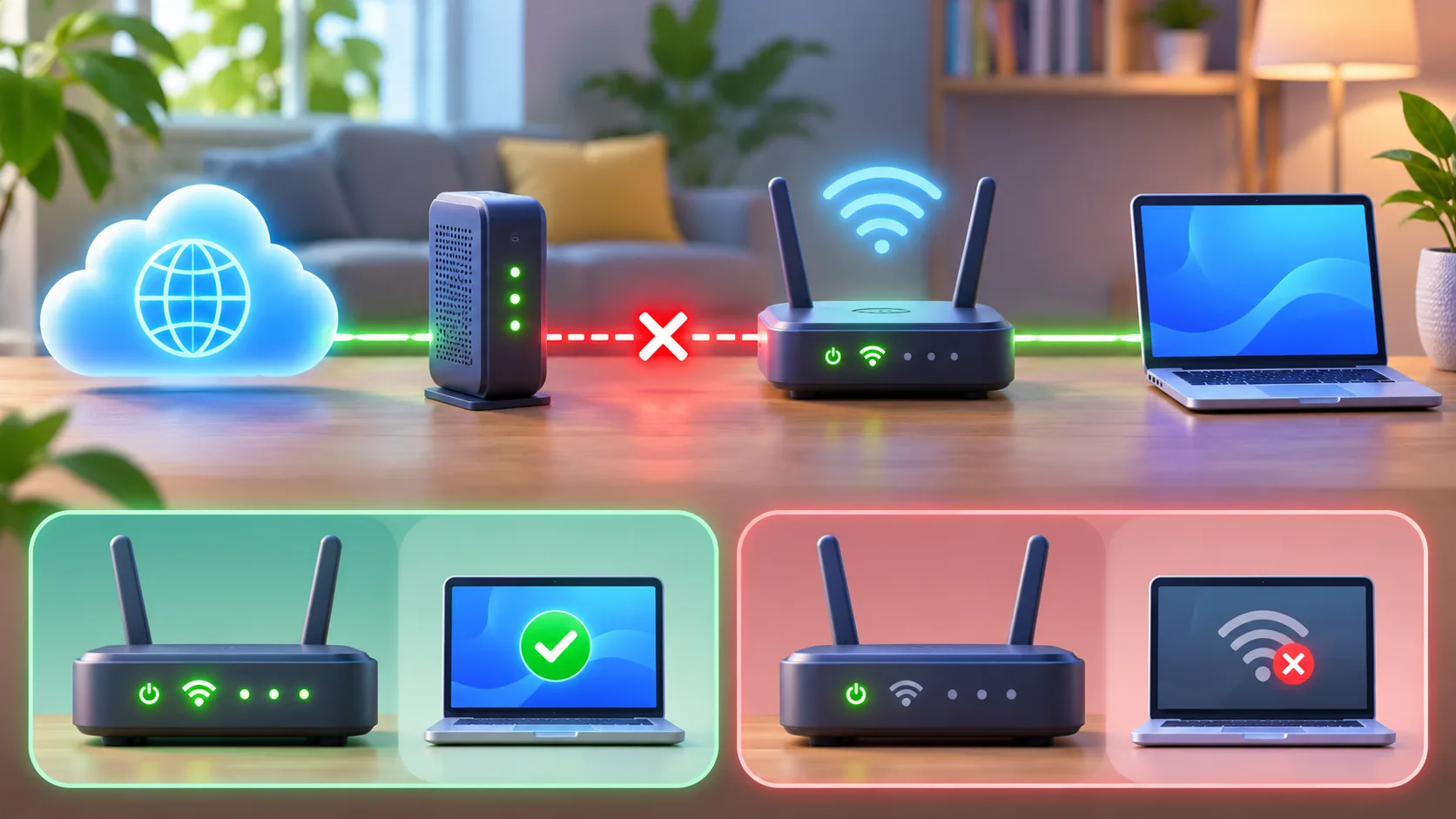
When more than one device is offline, check the provider’s outage notices using mobile data or another connection. Then follow the modem and router manuals for a normal power cycle. A power cycle means restarting the equipment; it is not the same as a factory reset. Give the modem time to establish its upstream connection before deciding the router has failed. Some combined modem-router units have a longer startup sequence than a separate router.
Use the reset button only when you intend to restore factory settings and know how to configure the network again. That may require the original network name and password, the provider’s setup details, or settings for a mesh system, guest network, or connected home devices. If the equipment belongs to an internet provider, some settings may be managed remotely. Check the provider’s instructions before changing them.
Check Windows without removing useful setup
Windows can help identify a problem on a single PC. Open Settings > Network & internet and use the available network troubleshooter or Get Help flow. Menu names differ between Windows versions, so use the current path shown on your device. Then confirm that the Wi-Fi adapter is enabled and that the selected network is the expected one.
A saved network can be forgotten and added again, but doing so removes its locally stored password. Keep the password ready first. If the device connects to Wi-Fi but still reports no internet, note whether other devices work and whether the same laptop works over Ethernet or a mobile hotspot. Those comparisons help separate the home router from the laptop’s configuration, though a hotspot may follow a different network policy.
Microsoft lists command-line network repairs and Network reset as later troubleshooting options. A reset can remove and reinstall network adapters and may require VPN or virtual-network software to be configured again. Before using it, save your work, make sure you have any required VPN setup information, and review the official Windows Wi-Fi troubleshooting guide. Do not run commands you do not understand simply because a forum lists them as a universal fix.
Keep the comparison narrow. When possible, leave the network name and password unchanged while you test. Renaming a network or changing its security mode can disconnect printers, cameras, and other devices, which creates new symptoms before the original one is understood. Write down any setting you do change and restore it if there is no clear improvement. A change that coincides with the internet returning is a clue, but an outage may also have ended at the same time.
If your router broadcasts separate 2.4 GHz and 5 GHz networks, the bands may behave differently depending on distance, walls, and device support. You can compare them on one device if both are already available, but do not rename networks or change several radio settings at once. The result can help identify a coverage issue; it will not repair a provider outage. Follow the router maker’s instructions because menu names and supported bands vary by model.
A guest network can also have rules that prevent devices from seeing one another. If a printer is missing but ordinary websites load, check whether the phone and printer are on different networks. That is a local access question, not evidence that the internet connection has failed. Avoid disabling guest isolation or security controls unless you understand the consequences and have a specific need.
Know what each reset changes. A normal restart gives the modem and router a fresh connection attempt while keeping their configuration. A factory reset may remove the wireless name and password, provider details, guest access, port rules, or mesh settings. Before a factory reset, confirm that you can configure the network again and have the information required by the provider. If the equipment is rented or remotely managed, ask the provider before resetting it.
If you use a mesh system, check the main router first and then compare one satellite at a time. A satellite that is too far from the main unit may lose its backhaul even though a phone still sees a strong signal from the satellite. The signal bars describe the device-to-node link, not necessarily the node-to-router link. Follow the manufacturer’s placement guide and avoid resetting every node together; that removes useful clues and can require a full setup.
During a provider outage, repeated restarts are unlikely to restore the line and can interrupt a modem that is already recovering. Check the provider’s official outage notice and note any estimated restoration window. After the notice says service is restored, test again and record whether the modem indicator returns to its documented normal state. If it does not, contact support with the time and indicator behavior instead of changing unrelated wireless settings.
If the problem remains, stop changing settings and ask the provider or device administrator to review the evidence you collected.
Frequently asked questions
Can Wi-Fi be connected while internet access is down?
Yes. The device can remain connected to the router even when the router cannot reach the modem or provider.
Should I factory-reset the router immediately?
No. Compare devices and destinations, check the status lights and provider notices, and try a normal restart first. A factory reset can erase settings.
Quick summary
Compare another device and several destinations to locate the fault.
Restart carefully; reserve factory and network resets for later.